
Copy Trading & Bots
How to Stop Copy Trading on OKX: Open Positions, Settings and Exit Steps
A practical guide to stopping an OKX copy relationship safely: find My copies, inspect open positions, choose an exit method, and verify that no new trades are being copied.
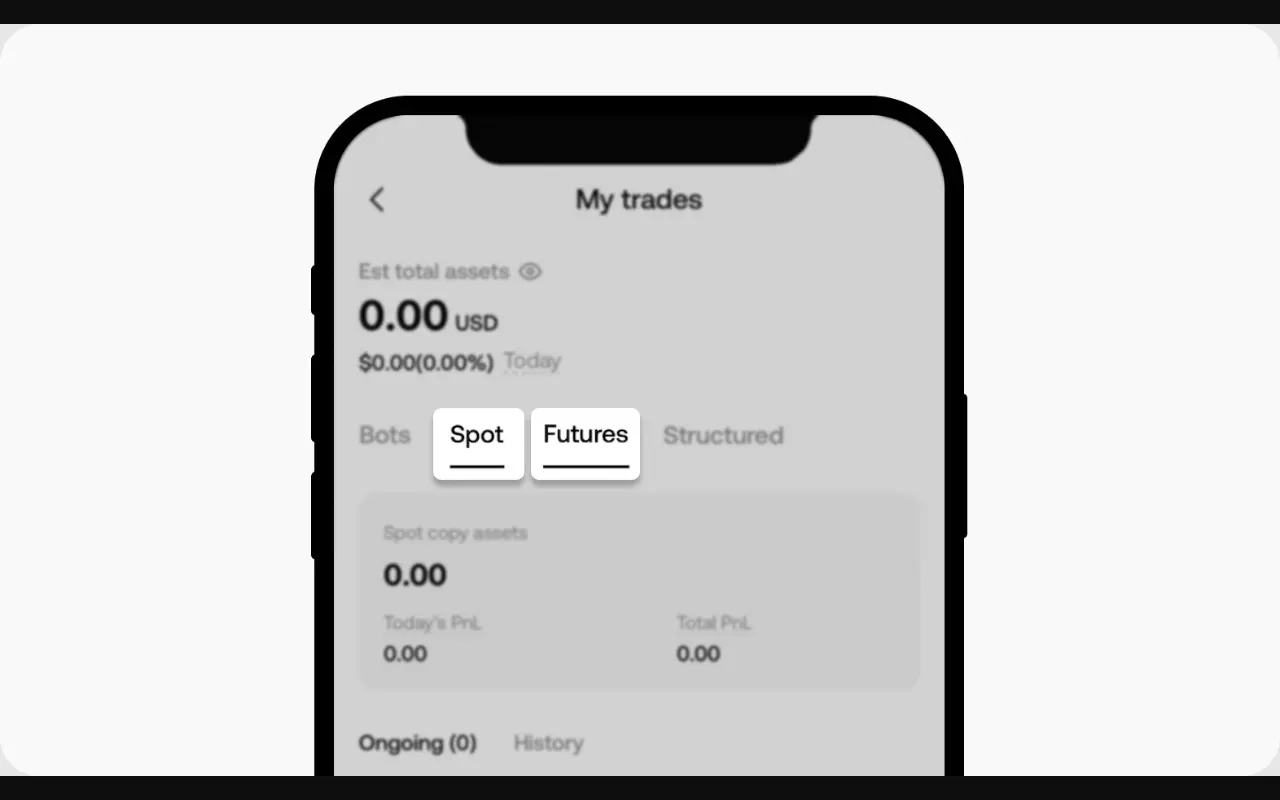
If you need to stop copy trading on OKX, do not treat the Stop copying button as proof that every open position has disappeared. OKX separates the copy relationship from the positions and orders already in your account. The safe sequence is to inspect Ongoing, stop future copying, decide how each open position should be handled, and verify the result before moving funds.
Quick answer: in the OKX app, go to Trade > Bots & Copy > My bots > My copies, open the relevant trader, select Manage, then choose Stop copying. Before confirming, review the Spot or Futures tab and every item under Ongoing. OKX states that changing copy parameters affects new copied trades only; existing open trades are not retroactively changed. Menus and available products can differ by region and app version.
This anonymous interface image comes from OKX's official guide to managing copied trades, updated August 26, 2026 and checked September 14, 2026. It contains no account identifier or personal balance.
Stopping the copy relationship is not the same decision as closing a position
There are two separate questions:
- Should OKX copy any new trades from this lead trader? Stopping the copy relationship answers this.
- What should happen to positions that are already open? This requires an explicit review of your ongoing trades and the exit choices shown by the product.
That distinction matters most for Futures. An open contract can continue to gain or lose value, incur or receive funding, trigger a take-profit or stop-loss, follow the lead trader's close, or be liquidated. Pressing one account-management control does not remove market risk that is still visible under Ongoing.
OKX's documentation for proportional copy trading describes three possible treatments when a total stop loss ends copying: close remaining positions immediately at market price, close them when the lead trader closes, or manage them manually. The choices shown when you stop copying can depend on product, account and region, so read the live confirmation screen instead of assuming one default.
Before you tap Stop copying
Take two minutes to make the current state unambiguous.
- Confirm whether you are viewing Spot or Futures. They are separate sections and expose different risks.
- Open Ongoing and record every open position and order linked to the trader. A private screenshot or note can help you verify the final state; never share account identifiers or balances publicly.
- For Futures, note the contract, direction, margin mode, leverage, current margin, take-profit and stop-loss. If those terms are unfamiliar, read our explanation of cross versus isolated margin and liquidation before deciding how to exit.
- Check whether closing at market could create material slippage in the current market. A market close prioritizes execution, not a guaranteed price.
- Decide in advance whether you want an immediate exit or merely want to prevent new copied trades. Do not make that choice from the confirmation dialog under pressure.
This is also the moment to check costs. Futures positions may cross a funding timestamp before they close, while any market exit can differ from the displayed price. Our guide to OKX copy-trading fees, profit sharing and slippage separates those costs from the strategy's trading result.
How to stop copying a trader in the OKX app
The route in OKX's public guide, checked September 14, 2026, is:
- Open Trade and select Bots & Copy.
- Select My bots, then My copies.
- Choose the relevant Spot or Futures copy relationship.
- Select Manage.
- Select the Stop copying control.
- Read the confirmation screen closely, especially any instruction about remaining positions.
- Confirm only after the selected treatment matches your decision.
Afterward, return to My copies and inspect Ongoing rather than relying on a toast message. If positions remain, they still need monitoring or an intentional close. When everything is settled and the assets are available, OKX's setup guide says you can transfer funds back to the funding account.
Do not use a generic web tutorial's screenshots as the final authority. OKX warns that features and rules may not apply to every customer, and the current app can show a different route or set of controls for your jurisdiction.
Three ways an existing copied position can close
1. You close it manually
OKX says a copy trader can manually close positions from Copy trading > My trades. Its current guide notes that the Details and Summary views support closing all positions at market price; it also points Futures users to Futures trading > Open positions. Check the exact order and price information before confirming.
A manual market close can fill at a worse price than the last price shown, particularly during fast moves or in a thin contract. It is an exit instruction, not a price guarantee.
2. The position follows the lead trader's close
If you leave an eligible copied position linked, OKX says the corresponding position closes when the lead trader closes theirs. This avoids choosing your own exit time, but it also leaves timing and market exposure outside your control while you wait.
3. A risk control or liquidation closes it
A configured take-profit or stop-loss can close the corresponding copied position when triggered. In Futures, liquidation can also close positions automatically. Neither outcome guarantees the displayed trigger price will equal the final execution price.
These paths are not interchangeable. An immediate market exit may crystallize slippage now; waiting for the lead trader preserves exposure; a stop-loss limits a scenario but can still execute through a fast market. Choose according to a loss you can afford, not according to the lead trader's historical return.
If you only want to reduce risk, consider whether a settings change is enough
Stopping is appropriate when you no longer want new trades from the lead trader. If the issue is allocation rather than the relationship itself, Manage may let you adjust copy settings for future positions. OKX explicitly says those parameter changes apply only to new copied trades. They do not resize, re-leverage or add protection retroactively to existing open positions.
That makes the order of operations important:
- Review and handle current exposure.
- Change the settings that will govern future copied trades.
- Verify the new settings before another lead order arrives.
If you are still deciding whether the trader fits your risk limit, use our lead-trader review checklist to compare drawdown, order history and copier outcomes instead of reacting to a single winning or losing trade.
How to verify that the exit is complete
Use a short reconciliation rather than assuming the interface handled every layer:
- The trader no longer appears as an active relationship that can open new copies.
- Ongoing shows no position or order you intended to close.
- Any remaining position matches the exit method you deliberately selected.
- History contains the closed copied trades you expected.
- The trading account balance reflects settled positions, fees, funding and any applicable profit-sharing adjustments.
- No new copied order appears after the stop confirmation.
If something does not match, do not repeatedly press close or stop. Duplicate instructions in a moving market can create a different problem. Capture the non-sensitive order ID and timestamp shown in your account, then use OKX support from the official app or website. Never send a password, seed phrase, API secret or authentication code to a supposed support agent.
Why a copy order may fail before or during your exit review
OKX lists several reasons a copied order may fail: the lead trader has stopped leading or lost permission, the trader has reached an order limit, or your trading account has insufficient available crypto. A failed new copy does not prove that the entire relationship is closed, and it does not settle a separate position already open. Review Ongoing and the relationship status independently.
FAQ
Does Stop copying automatically close every open position?
Do not assume so. The copy relationship and existing positions are separate. Review the confirmation screen and Ongoing; OKX documents different treatments for remaining positions in some copy-trading risk controls.
Will lowering my amount or stop-loss setting protect a position already open?
OKX says copy-parameter changes affect new copied trades only. Inspect and manage existing positions separately.
Can I close a copied Futures position myself?
Yes. OKX points to Copy trading > My trades and, alternatively, Futures trading > Open positions. Read the current close method and price details before submitting.
Why is the Stop copying path different in my app?
Menus, product availability and rules can vary by app version, product and jurisdiction. Start from Trade > Bots & Copy, then use the labels shown in your verified account.
Official sources checked
- OKX: How do I manage my copied trades? — management route, effect of parameter changes, Ongoing/History and position-closing scenarios; updated August 26, 2026.
- OKX: How do I create a successful copy trade order? — current cancellation route and transfer reminder; updated August 11, 2026.
- OKX: Introduction to proportional copy trading — remaining-position choices after a total stop loss and copy-setting behavior; updated August 5, 2026.
Educational content only. Copy trading and crypto derivatives can produce substantial losses, including liquidation. This article is not investment, legal or tax advice.