How to Set an OKX Anti-Phishing Code and Check Suspicious Emails
Set up an OKX anti-phishing code, verify suspicious emails without clicking their links, and know what to do if a message fails the check.
An OKX anti-phishing code is a short personal identifier that should appear in emails sent by OKX after you enable the feature. Its purpose is simple: a message that omits the code or shows the wrong one deserves immediate suspicion. It is especially useful when a polished email tries to rush you into signing in, moving funds or contacting a supposed support agent.
The code is a useful checkpoint, not permission to click. A convincing sender name can be forged, and a real-looking email can still point to the wrong website. Use the code together with the sender domain, link destination and the activity shown inside your OKX account.
Official OKX Help Center instructions captured on September 17, 2026. The example account details are masked in the source image. Menu names and availability can differ by region or app version.
What the anti-phishing code does
After you create the code in OKX Security Settings, OKX says it will include that identifier in its official email communications. You compare the code in a new message with the one only you should know.
That gives you a quick warning in two common situations:
- The code is missing. Do not follow the email’s links or instructions. Open the OKX app or type the official website address yourself and check the claimed event there.
- The code is wrong. Treat the message as suspicious even if the logo, layout and sender name look familiar.
Do not reuse an account password, authenticator code, recovery phrase or other security secret as the anti-phishing code. Choose something you can recognise, keep it private and change it if you ever disclose it. The code is meant to help you authenticate an email; it should never become another credential that you send to someone.
How to set an OKX anti-phishing code
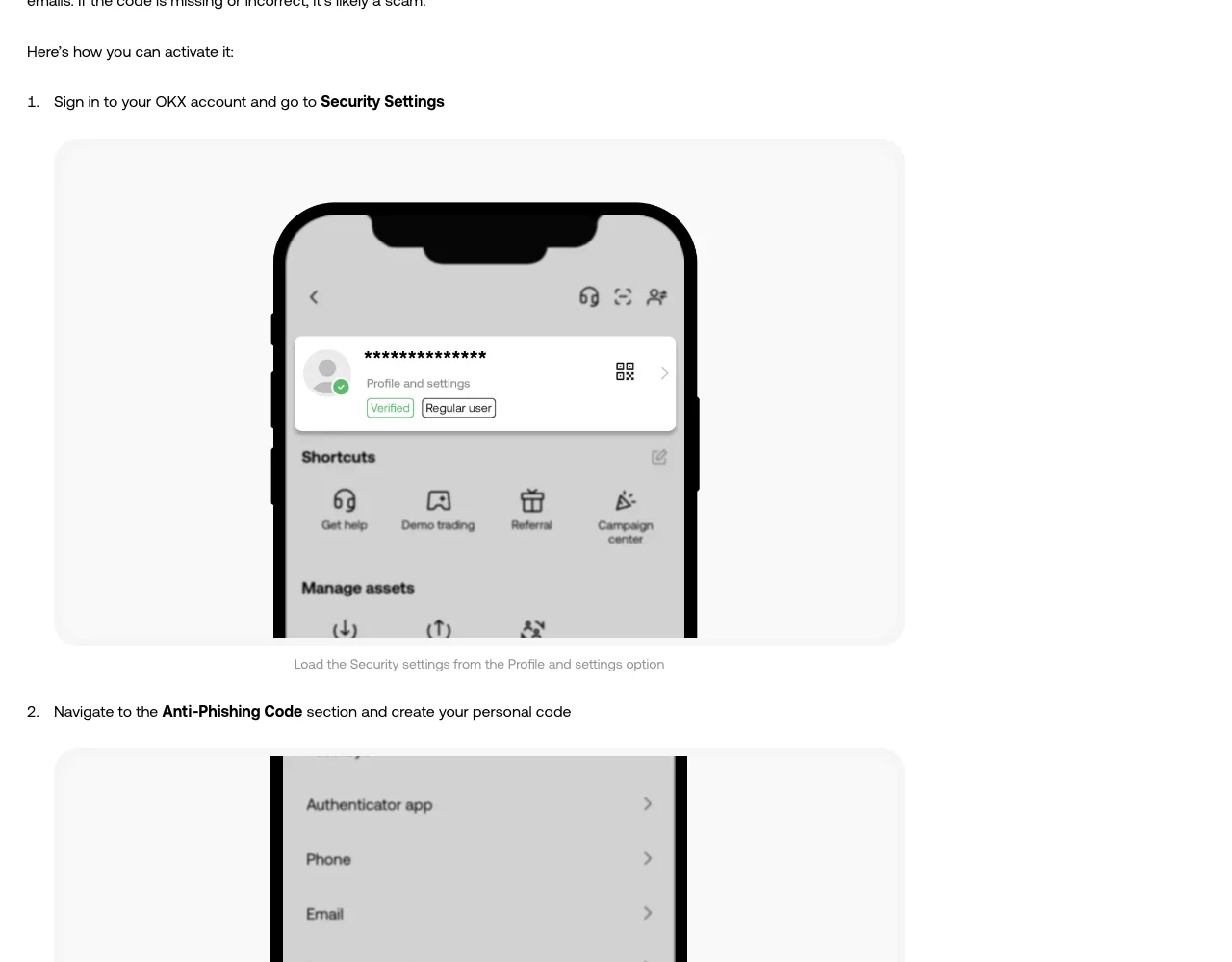
The current OKX instructions show this app route:
- Sign in through the official OKX app.
- Open Profile and settings.
- Select Security or Security Settings.
- Under the advanced security options, choose Anti-Phishing Code.
- Continue to the setup screen, create a code that follows the displayed requirements and complete the requested account verification.
- Return to the same security page and confirm that the feature is enabled.
Navigation can change by region. If the option is not where the screenshot shows it, search the Help Center for “anti-phishing code” from the official app or website instead of following an unofficial tutorial into a different menu.
An anti-phishing code is only one layer. Before adding funds, complete the broader OKX account security setup and consider using a passkey for safer sign-in. These controls address different failures: the anti-phishing code helps assess emails, while a passkey helps resist credential theft during sign-in.
How to check an email that claims to be from OKX
Work through these checks without clicking anything in the message.
1. Compare the anti-phishing code
The code should match exactly. A missing or incorrect code is enough reason to stop. Do not reply to ask the sender why it is missing; that keeps you inside a potentially fraudulent conversation.
A matching code is reassuring, but it is not the only test. If you previously shared the code, forwarded an OKX email publicly or exposed your inbox, an attacker may have learned it.
2. Expand and inspect the full sender address
Do not judge the message by the display name. Expand the sender details and read the address character by character. Look for substituted letters, extra words and unrelated domains. OKX maintains an official channel-verification tool for checking email domains and other accounts; open it from the OKX website or app rather than from the message being tested.
3. Preview links without opening them
On desktop, hover over each link. On mobile, avoid long-press actions that might open the page unexpectedly. If you cannot safely inspect a destination, do not use the link.
The safest route is to close the email, open your saved OKX app or manually enter https://www.okx.com/, then look for the claimed alert, withdrawal or account restriction there. An email should not be your only evidence that an urgent account event occurred.
4. Reject requests for secrets or transfers
OKX’s phishing guidance says its emails will not ask you to provide a password, seed phrase, private key or identity documents. A request to transfer crypto, scan an unexpected QR code, install remote-access software or share a verification code is also a strong warning.
Urgency does not make an instruction legitimate. Pause when a message threatens immediate closure, promises an expiring reward or tells you to “secure” funds by sending them elsewhere.
5. Verify the event inside your account
Open OKX independently and check security activity, withdrawals, P2P orders or announcements as appropriate. If the message concerns a withdrawal you did not request, use the official support route from the app and review your account protections. A withdrawal address whitelist can add another barrier, but it does not replace checking devices, credentials and account activity.
What if the sender address looks correct?
The visible “From” field can be forged. For a high-risk or unusually convincing message, OKX documents a deeper check using the downloaded .eml file. Open the file as text and find its authentication results. OKX specifically tells users to look for failed SPF, DKIM or DMARC checks; a failure indicates that the message did not pass the corresponding email-authentication test.
This check is more technical and should not be used to talk yourself into trusting a suspicious request. Passing results do not make an unusual transfer instruction safe. If the content still feels wrong, contact OKX through the support entry you opened independently and provide the EML file if requested.
Do not upload a private email to a random online “header checker.” Email files may contain your address, message identifiers, routing information and other personal data.
If you already clicked or entered information
Act from a clean device or browser session and use the official app or manually entered OKX address.
- Stop interacting with the suspicious page or sender.
- Change any password that you entered, including on other services where it was reused.
- Review sign-in activity, trusted devices and security settings.
- Revoke unfamiliar API keys and connected access.
- Contact official OKX support if account access or funds may be at risk.
- If a self-custody wallet seed phrase or private key was exposed, assume that wallet is compromised and seek urgent, trusted guidance for moving remaining assets to a newly created wallet.
Do not pay a person who promises to “recover” crypto through private messages. Recovery scammers frequently target people immediately after an incident.
A 30-second email check
Before acting on any OKX email, ask:
- Does the anti-phishing code match?
- Is the complete sender domain verified through an independently opened OKX channel?
- Can I confirm the claimed event inside my account?
- Does the message avoid requests for passwords, seed phrases, verification codes or transfers?
- Am I navigating through the saved app or a manually entered official address instead of the email link?
If one answer is no or uncertain, stop and verify through official support. A legitimate security process can survive a careful pause; a phishing attempt depends on preventing one.
Official sources checked
- How do I protect myself from phishing scams on P2P?, including the current Anti-Phishing Code setup screenshots; checked September 17, 2026.
- How to prevent phishing emails, updated May 29, 2026; checked September 17, 2026.
- How do I check if an email is officially from OKX via EML file?, updated May 29, 2026; checked September 17, 2026.
- How do I identify OKX official accounts?, updated September 1, 2026; checked September 17, 2026.
Educational security guidance only. OKAVG is an independent tutorial site and is not affiliated with OKX.