
Getting Started
How to Set Up an OKX Passkey: A Safer Sign-In for Your Account
Set up an OKX passkey on web or mobile, choose safe storage, prepare a tested backup, and avoid lockouts or withdrawal delays when changing devices.
How to Set Up an OKX Passkey: A Safer Sign-In for Your Account
An OKX passkey lets you sign in or complete supported security checks with a credential unlocked by your fingerprint, face, device PIN, or a FIDO2 security key. Unlike a password, the private credential is not sent to OKX or typed into a website. That makes passkeys resistant to the ordinary phishing pattern in which a fake page captures a reusable password or one-time code.
This guide is for OKX exchange-account users who want to enable a passkey without creating a recovery problem later. It covers the current web and app routes, storage choices, phone replacement, and common setup failures. Availability and wording can vary by region, account, operating system, and app version, so the prompts shown in your own account remain authoritative.
Quick answer: On the web, sign in and open Profile > Security > Security center > Passkeys > Set up. In the app, open Menu > Account settings > Security > Passkeys. Complete the requested account checks, choose the device or FIDO2 key that will store the credential, and test the passkey before relying on it.
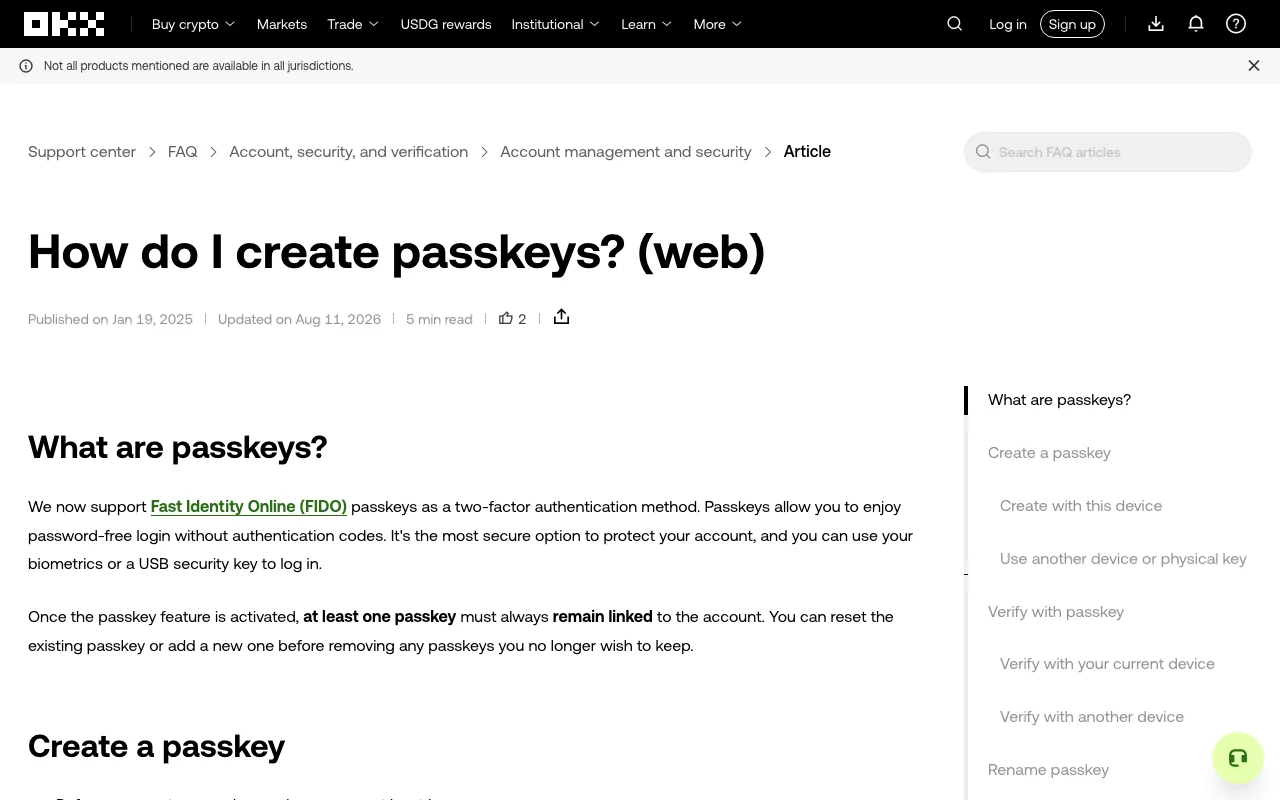
Screenshot of the public OKX Help Center captured on September 2, 2026. Menu names and eligibility can differ by region and account.
Before you enable a passkey
Take five minutes to prepare:
- Open OKX from the official app or a trusted bookmark, not from an email, advertisement, or direct-message link.
- Confirm that your recovery email and phone number are current.
- Turn on a strong screen lock and finish setting up Face ID, Touch ID, fingerprint unlock, Windows Hello, or a device PIN.
- Update the OKX app, browser, and operating system.
- Decide whether the credential will live on a personal device, in a synced passkey provider, or on a physical FIDO2 security key.
- Do not create a passkey on a shared computer, a public machine, or a device administered by someone you do not trust.
If you have not finished basic account setup, use the step-by-step OKX account guide first. A passkey improves authentication, but it does not correct an outdated recovery email or an unlocked device.
What an OKX passkey does
A passkey uses a cryptographic key pair. OKX keeps the public key, while the private key stays with the device, passkey provider, or hardware security key that created it. When OKX asks for authentication, your device signs the request after you unlock the credential locally.
This design has three practical benefits:
- No reusable secret is typed into the page. A fake login form cannot collect a password that does not exist in the flow.
- The credential is bound to the legitimate service. FIDO authentication is designed to reject a look-alike domain rather than hand it a valid OKX credential.
- Biometric data remains local. Your face or fingerprint unlocks the credential on the device; OKX receives proof that the local check succeeded, not a copy of your biometric data.
A passkey does not make the whole account invulnerable. Someone who can unlock your phone may be able to use credentials stored on it. Recovery channels, logged-in sessions, API keys, and withdrawal settings still need protection. For an additional transfer safeguard, review how the OKX withdrawal whitelist limits destinations.
Device and browser requirements
OKX's current web guide lists these baselines:
- Windows 10 or macOS Ventura, or a FIDO2-compatible USB security key;
- Chrome 109 or later;
- Safari 16 or later; or
- Edge 109 or later.
For the app, OKX currently lists iOS 16 or later or Android 14 or later, with a compatible screen lock or FIDO2 security key. On iOS, passkey support depends on Apple's password and iCloud Keychain settings. On Android, OKX says the device must be able to use Google services. Requirements can change, so check the current OKX help page if the option is missing.
How to create an OKX passkey on the web
- Go directly to the official OKX website and sign in.
- Open Profile > Security.
- In Security center, find Passkeys and select Set up.
- Select Enable passkeys and complete the requested security verification.
- Choose one of the offered storage methods:
- This device: approve with the device's biometric method or PIN.
- USB security key: insert a FIDO2-compatible key and follow the browser prompt.
- A different device: scan the displayed QR code with the other device's native camera and approve there.
- Rename the passkey in OKX's management screen if a clear label such as “Personal MacBook” or “Primary iPhone” will help you identify it.
- Sign out and test the passkey while your existing recovery methods still work.
Never approve a passkey or QR prompt that you did not initiate. Cancel the flow, close the page, and reopen OKX from a trusted bookmark if a request appears unexpectedly.
How to create one in the OKX app
- Open the official OKX app.
- Go to Menu > Account settings > Security > Passkeys.
- Select Enable.
- Complete the checks requested by your account. OKX's current app guide says first-time binding can require identity, email, and SMS verification.
- Choose the current phone, another device, or a supported security key.
- Approve creation with the phone's biometric method or screen-lock PIN.
- Return to the Passkeys screen and confirm that the new credential appears in the management list.
The exchange-account passkey described here is not the same as an OKX Pay passkey. OKX documents Pay as a separate passkey system for authorizing Pay transactions. The exchange account and the self-custody wallet also have different recovery models; read the OKX exchange account versus Web3 wallet comparison before assuming one credential protects every product in the app.
Where should you store the passkey?
A personal phone or laptop
This is the simplest choice for many people. It works best when the device receives security updates, has a strong lock, and is not shared with family members or coworkers.
A synced passkey provider
A synced passkey can follow you to other trusted devices signed in to the same Apple, Google, or compatible password-manager account. That reduces the risk of losing access with one broken phone, but the provider account and its recovery process become part of your security boundary.
A physical FIDO2 security key
A hardware key keeps the credential separate from an everyday phone. It can be a strong choice for a high-value account, but one key carried everywhere becomes a single point of failure. If OKX and your recovery plan allow it, register a backup key and store it separately.
Whichever method you choose, write down where each passkey is stored. Do not write down a passkey itself, share a QR code, or photograph a setup prompt for someone claiming to be support.
What to do before changing phones
Do not erase the old device first.
- Check whether the passkey is synced to a provider available on the new phone.
- Sign in on the new device and test the credential.
- If possible, add another trusted passkey before removing the old one.
- Confirm that your recovery email, phone, and other authentication methods still work.
- Only then remove the old credential and wipe the old device.
OKX says at least one passkey must remain linked after the feature is activated. If only one is registered, the management screen offers a reset flow rather than simple removal. The current web guide also says resetting a passkey triggers a 24-hour restriction on withdrawals and P2P trading. Removing one without verifying with another passkey can trigger the same restriction. Do authentication maintenance before, not during, an urgent transfer.
Common problems and safe fixes
“Passkeys” is missing from Security
Update the app, browser, and operating system, then check again. Confirm that the device meets the current requirements and has a screen lock. The feature may not be offered to every account or jurisdiction. Do not install an unofficial APK or browser extension to force it to appear.
The browser does not offer Touch ID, Face ID, or Windows Hello
First verify that the biometric method or PIN works at the operating-system level. Then try a supported current browser. Native dialogs differ between operating systems, so a different appearance does not by itself mean the prompt is fake; the domain and the action you initiated still need to match.
The passkey works on one device but not another
Check which provider stored it and whether both devices are signed in to the same provider account. A credential stored on a physical security key or bound to one device will not automatically sync.
Face verification fails during setup
Retry in even lighting and follow the on-screen instructions. If OKX reports that the attempt limit has been reached, use the official support route. Never pay a third party who claims to bypass identity or security checks.
You lost the only device
Use OKX's official account-recovery process. Do not share remote-screen access, verification codes, passkey QR codes, or a wallet seed phrase with anyone claiming to be support. An exchange passkey is not a Web3 wallet seed phrase.
Final security checklist
- Create passkeys only on devices or hardware keys you control.
- Protect the device and the Apple, Google, or password-manager account that may sync the credential.
- Register and test a backup path before replacing or wiping a device.
- Label multiple passkeys clearly in the OKX management screen.
- Review signed-in devices and remove sessions you do not recognize.
- Never approve a passkey prompt or cross-device QR flow you did not start.
- Keep withdrawal protections enabled; a passkey secures authentication, not every action or mistake.
For most users, a passkey is a meaningful improvement over a reused password and SMS code. The safest setup is deliberately boring: a credential on a well-protected personal device, a tested recovery path, and no rushed security changes immediately before moving funds.
Sources and verification
- OKX: How do I create passkeys? (web) — web route, requirements, storage options, management rules, and withdrawal restriction; updated August 11, 2026.
- OKX: How do I create passkeys? (app) — mobile route, device requirements, and first-time binding checks; updated August 14, 2026.
- OKX: Pay Passkey FAQ — distinction between exchange and Pay passkeys; updated August 13, 2026.
- FIDO Alliance: Passkeys — phishing resistance, cryptographic credentials, local biometric processing, and storage models.
Last fact-checked: September 2, 2026. Product availability and menu labels can change by region, account, and app version. This article is independent educational content, not financial advice.