
Web3 Wallet & Tools
OKX Demo Trading: How to Practise Without Risking Real Money
Find OKX demo mode on web or app, place and check a practice order, reset virtual balances, and use a seven-session plan before considering live trading.
OKX demo trading lets you place simulated trades with virtual assets instead of real money. It is useful for learning the interface, testing an order checklist and discovering operational mistakes before they become expensive. It is not proof that a strategy will work with real funds. OKX states that its demo and live environments are separate and that demo price movements should not be used as a reference for live market conditions.
This guide focuses on the part that transfers safely from practice to live trading: knowing exactly what you intend to do, where to verify the result and when to stop.
Open demo mode and place your first practice order
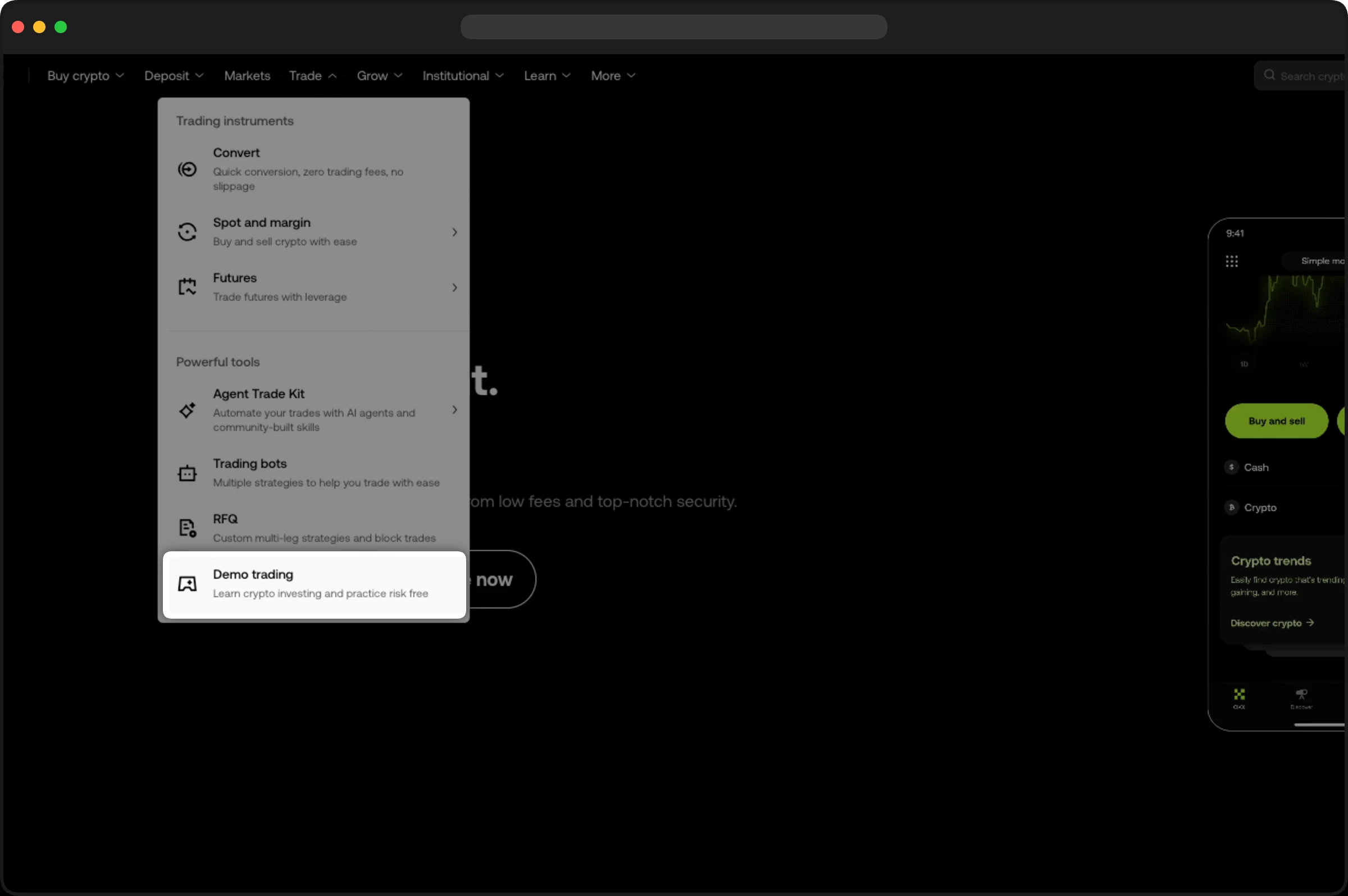
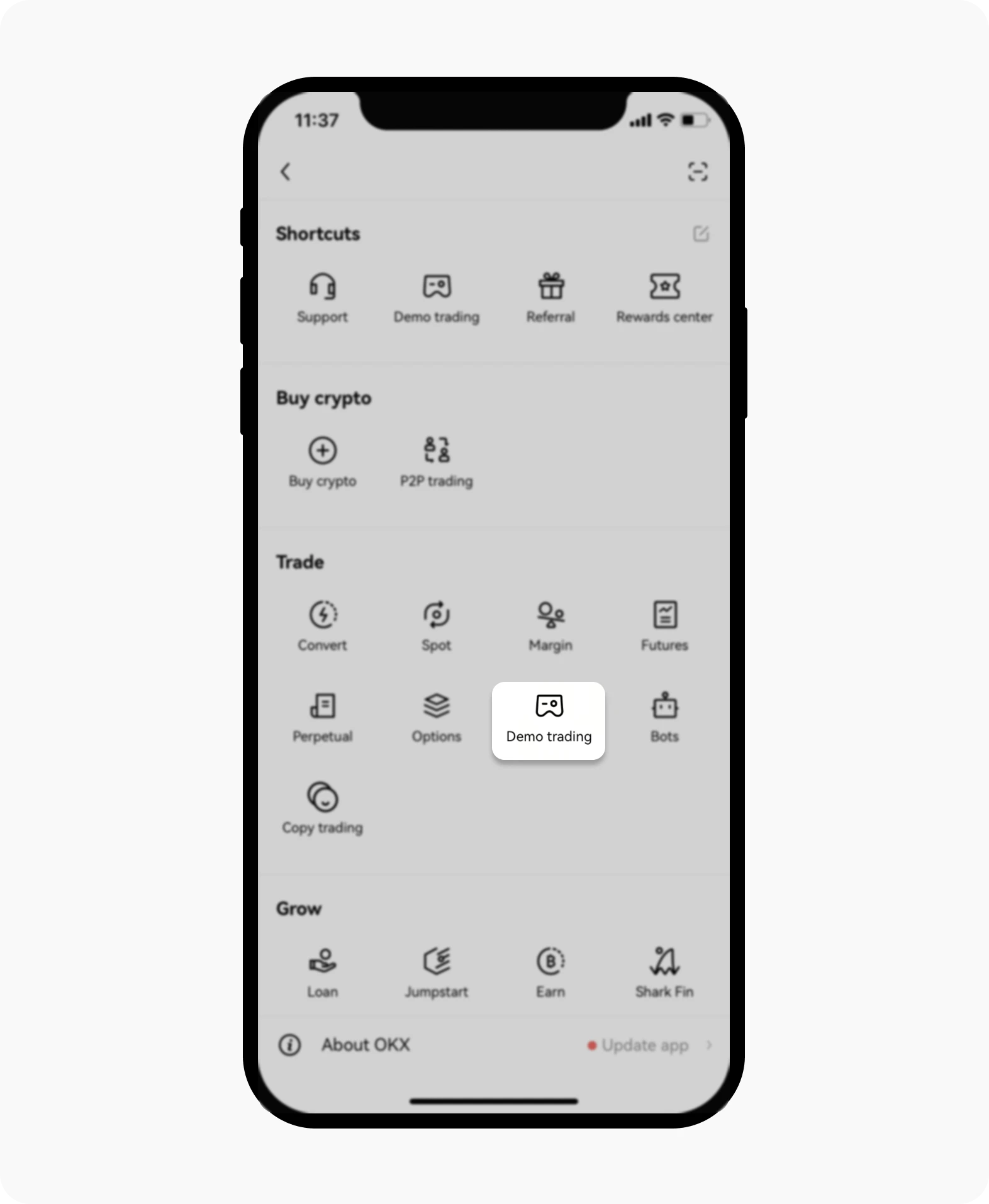
- Open the correct environment. On the web, use Trade → Demo trading. In the app, look in User Center → Trade or Shortcuts. Availability and labels vary by region; if the option is absent, consult the help page for your account rather than downloading a separate “demo” app.
- Check the balance and mode label. Confirm that the screen says Demo trading and the assets are virtual. No real deposit is needed to fund a practice order.
- Choose one market. Check the pair and product type before using the order form. A spot pair and a perpetual contract are different instruments even when both contain BTC.
- Enter a small virtual order. Select the order type, quantity and, for a limit order, price. Read the summary before confirming. A submitted order is not necessarily a filled order: inspect open orders, fills and positions afterward.
- Finish the exercise. Cancel any unfilled order and close a simulated position you no longer intend to keep. Locate Exit before returning to the live account, then check the environment label again.
Source: OKX's official demo trading instructions, checked September 27, 2026. This is OKX's published interface screenshot; menus vary by region and version.
Reset a demo balance without touching live funds
Close open demo positions and cancel pending demo orders first. Then open the demo Assets area and use Reset for the relevant asset. The US web guide describes Assets → Demo trading → My assets; other versions may use a shorter route. Reset restores demo assets, not your live balance. If the control is unavailable, recheck positions and orders before retrying.
Need to connect software instead of using these controls? Use the separate OKX demo API setup and error guide.
What OKX demo trading is
Demo trading is a separate practice environment funded with virtual assets. Depending on your region and account, OKX may make simulated spot, margin, futures or options trading available. The current public instructions direct web users to Trade → Demo trading. App navigation can differ by region, so treat the label Demo trading and the virtual balance as the important checks rather than memorising one menu path.
Before entering an order, confirm all three points:
- The page or app clearly identifies the environment as Demo trading.
- The available balance is described as virtual or demo assets.
- You can identify the control that returns to live trading.
Do not deposit money merely to practise. Demo balances have no cash value, cannot be withdrawn and do not change your live account balance.
What demo trading can teach you
A useful practice session answers operational questions, not profit predictions. You can use it to learn how to:
- choose an instrument without confusing spot and derivatives;
- compare a market order with a limit order;
- locate open orders, order history, fills and positions;
- set a position size before pressing Buy or Sell;
- identify margin mode, leverage and liquidation information where derivatives are available;
- place and review exit instructions;
- cancel an unfilled order; and
- document why an order was opened and how it was closed.
If futures are part of your practice, read the plain-language guide to cross versus isolated margin before changing the margin-mode control. The interface may make the toggle look simple, but the choice determines which collateral can support a position.
What simulated results cannot prove
The biggest mistake is treating a virtual profit as evidence of live performance. OKX's current help page says demo and live trading are completely separate and that price movements in demo mode have no relation to live market conditions. That limits what you can conclude from a fill or P&L figure.
A demo result cannot prove that:
- the same order would fill at the same price or speed in a live market;
- live liquidity and slippage would match the simulator;
- every live trading fee or carrying cost is represented in the same way;
- you would follow the same plan while real savings are at risk;
- a short profitable run has statistical value; or
- a product is available or appropriate in your jurisdiction.
For perpetual futures, funding is a separate live cost to understand before holding a position. Our OKX funding-rate guide explains the formula, payment direction and interval checks without assuming that a demo P&L captures your future live cost.
A seven-session practice plan
You do not need to complete these sessions on consecutive days. Repeat any session until you can explain every action and verify the result in the account records. Use small virtual sizes so the screen remains easy to read.
Session 1: map the screen
Choose one market and locate the order ticket, current orders, order history, position panel and available balance. Do not place a trade until you can explain what each area records.
Pass condition: you know where to confirm whether an order is open, filled, cancelled or rejected.
Session 2: compare market and limit instructions
Place one small virtual market order. Then place a small limit order at a price that should remain open long enough to inspect and cancel it. A market order prioritises execution but does not guarantee one exact price. A limit order defines a price boundary but may not fill.
Pass condition: you can explain the trade-off between execution certainty and price control without looking at a profit number.
Session 3: write the trade before entering it
Record six fields: instrument, direction, entry condition, size, invalidation point and exit plan. Only then place the simulated order. If take-profit or stop-loss controls are available for that instrument, practise setting them as part of the plan rather than improvising later.
Pass condition: the completed order can be compared with a plan written before entry.
Session 4: inspect leverage and margin boundaries
If derivatives are available, identify the leverage, margin mode, position margin and liquidation information before confirming anything. Change only one setting at a time. Avoid using maximum leverage simply because the funds are virtual.
Pass condition: you can state which collateral is exposed and where the interface shows liquidation information.
Session 5: find and correct an operational mistake
Create one harmless, reversible mistake with virtual assets: leave a limit order open, use a size that breaks your written rule or attempt a reset while an order is pending. Find the evidence, correct it and record what warning sign you missed. Never rehearse an error involving credentials, API keys or real transfers.
Pass condition: you can identify and reverse the mistake without opening another position.
Session 6: reset the virtual assets
OKX says you must close open demo positions and cancel pending demo orders before resetting assets. On the web, the documented route is Assets → Demo trading → My assets, followed by Reset for the relevant asset. Reset restores the initial demo amount; it does not let you choose an arbitrary starting balance and does not affect live funds.
If Reset is unavailable, check every instrument for an open position as well as ordinary, trigger and conditional orders. Then reload the asset page.
Pass condition: you can explain why the reset was blocked and confirm that no demo exposure remains.
Session 7: repeat the full checklist
Run one complete exercise: verify demo mode, write the six-field plan, place a small order, inspect its status, exit according to the plan and review the records. Note each point where you hesitated or deviated.
Pass condition: the records match the plan, and your notes explain the process rather than celebrating virtual profit.
For API practice, use separate simulated credentials and endpoints; do not reuse assumptions from a live integration. The OKX demo trading API guide covers the required x-simulated-trading header and common setup errors.
A conservative demo-to-live checklist
Finishing the sessions does not create an obligation to trade live. Stop and continue practising unless every statement below is true:
- I check the environment label before entering an order.
- I can explain the order type and its fill risk in plain language.
- I choose size and exit conditions before entry.
- I know where to verify fills, fees, open orders and positions.
- I understand which funds the selected margin mode can expose.
- I accept that virtual profit does not predict live results.
- I have checked current rules and product availability for my jurisdiction.
- Any first live amount would be small enough that losing all of it would not affect essential expenses.
If one item is uncertain, repeat the relevant session or stop. The simulator has no deadline, and waiting is a valid decision.
Official sources checked
- OKX US: demo balance reset instructions, checked September 27, 2026; navigation can differ in other regions.
- What's demo trading and how do I use it?, updated September 4, 2026; checked September 27, 2026.
- How do I trade futures in demo trading?, updated August 11, 2026; checked September 21, 2026.
Educational content only. Crypto and leveraged trading involve substantial risk of loss. OKAVG is an independent tutorial site and is not affiliated with OKX.